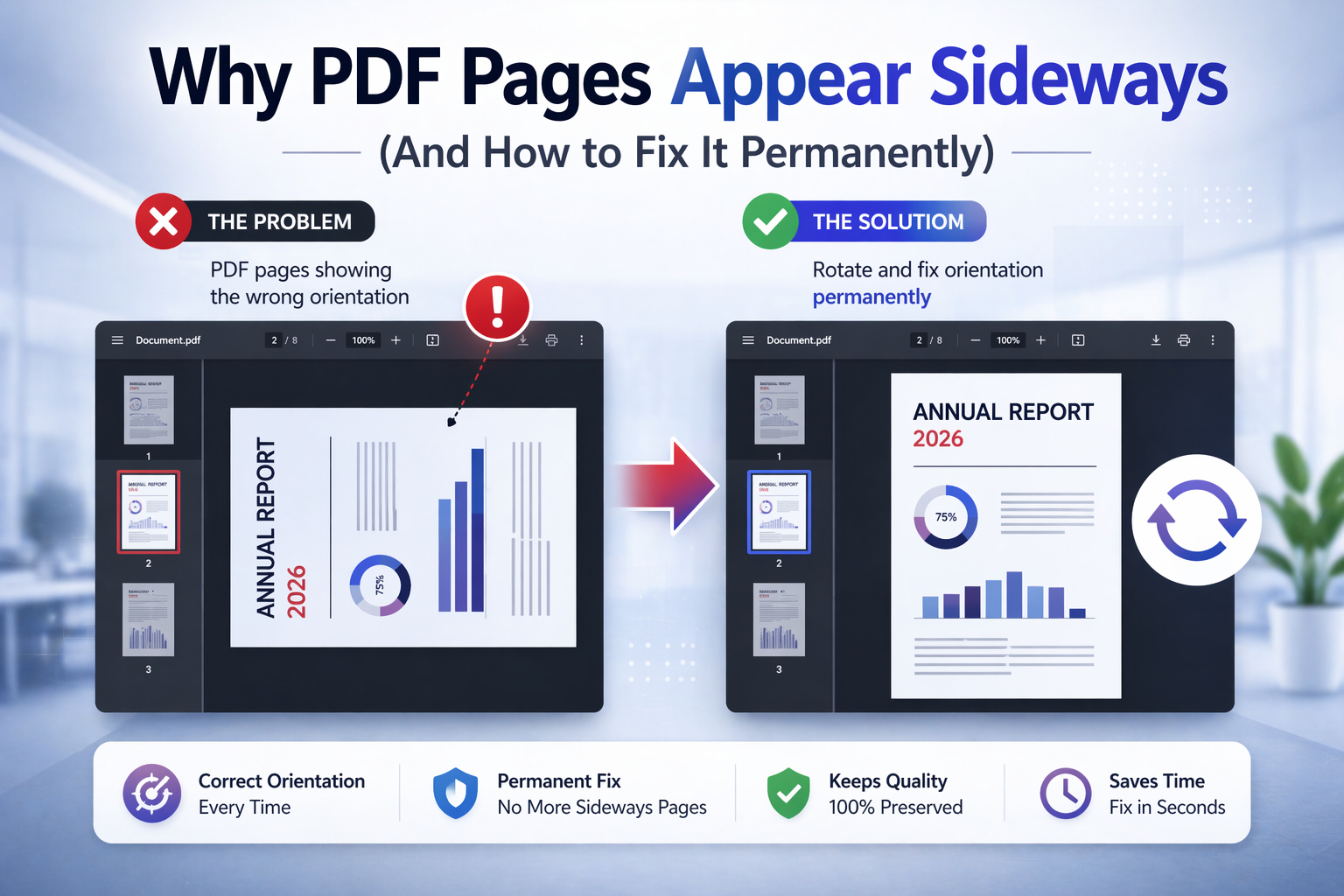
Why PDF Pages Appear Sideways (And How to Fix It Permanently)
Opening a PDF and finding pages sideways, upside down, or mixed between portrait and landscape is one of the most common document frustrations. It happens with scanned files, combined reports, downloaded forms, signed contracts, and even PDFs created from office software. The problem looks simple, but there are several technical reasons behind it.
This guide explains why PDF pages appear sideways, why the issue is often misunderstood, and how to fix it in a way that works not only on your own screen, but also when the file is printed, shared, converted, or archived. In this first part, we will focus on the root causes of orientation problems and the difference between temporary viewing fixes and permanent document fixes.
What “sideways PDF” actually means
When most users say a PDF is sideways, they usually mean one of three different things. First, the page may actually be stored in the wrong orientation inside the file. Second, the page may be stored correctly, but the viewer is displaying it in a confusing way. Third, the page may contain content that was inserted or scanned sideways, even if the page itself is technically upright.
Those differences matter because each one requires a different fix. If you do not identify the real cause, you can waste time rotating pages in a viewer, printing with strange settings, or converting the document to another format only to discover the orientation problem is still there.
Why PDF orientation problems happen so often
PDFs are used everywhere because they preserve layout. That same strength is also why orientation problems become so visible. Once a page is saved incorrectly, the error tends to stay consistent across devices. Unlike a Word document, where content can reflow and be adjusted while editing, a PDF is designed to preserve appearance. If that preserved appearance is wrong, every user sees the same wrong result.
Orientation problems usually come from one of these sources:
- Documents scanned with pages turned the wrong way
- Phone scans captured in inconsistent device orientation
- Merged PDFs containing pages from different sources
- Exports from office software with mixed page settings
- Metadata that tells viewers to display the page differently from the content itself
That is why orientation issues are especially common in administrative workflows, accounting, legal files, and education, where people constantly scan, merge, sign, and resend documents.
Incorrect scanning is the number one cause
The most common cause of sideways PDFs is scanning. Flatbed scanners, document feeders, multifunction printers, and mobile scan apps can all create orientation mistakes. A single sheet fed in the wrong direction can become a sideways page. A batch of papers with one page flipped can create a mixed-orientation PDF. A mobile phone scan can detect edges correctly but still store the page at the wrong angle.
With office scanners, the issue often happens because users focus on feeding speed rather than orientation consistency. With mobile scanning apps, it happens because the phone rotates between shots or because automatic rotation detection guesses incorrectly.
Once that scan is saved as PDF, the orientation mistake becomes part of the file. That is why the correct fix is usually not “rotate on screen,” but to rotate the actual PDF pages permanently using a dedicated tool such as Rotate PDF.
Mixed source documents create hidden orientation conflicts
Another common scenario is merging multiple files into one PDF. Imagine a user combines an invoice scanned vertically, a landscape bank statement, two phone-scanned receipts, and a signed contract exported from email. Individually, each file may be readable. Once merged, the final PDF feels chaotic: some pages are upright, some are sideways, some look portrait but contain landscape-oriented content.
This is why orientation issues often appear after combining documents. If you merge first and only then notice the problem, you may need both rotation and page reordering. A practical workflow is often:
- Merge the files with Merge PDF
- Fix any sideways pages using Rotate PDF
- Reorder pages if needed using your page management tool
For SEO cluster purposes, this is important too: users searching “why is my PDF sideways” often have an adjacent need around merging, reordering, or printing. Mentioning those related tasks naturally reinforces your cluster without looking spammy.
Temporary rotation vs permanent rotation
This is the key concept most users do not understand. PDF viewers often allow temporary page rotation. In a desktop viewer or browser, you can usually rotate the current view clockwise or counterclockwise. That is useful if you just want to read the document quickly. But it usually does not change the file itself.
That means the PDF may look fine on your screen and still be wrong everywhere else. If you email it, upload it to a portal, print it, or convert it to Word, the orientation issue can come back. This is why temporary rotation feels like a fix but often is not one.
Permanent rotation edits the file itself. The page is stored in the correct orientation, so other viewers, printers, and downstream tools read it properly. If you want the document to behave correctly everywhere, permanent rotation is the real fix.
Why printing often reveals the problem
Many users only notice orientation problems when they print. A PDF might appear readable in the browser because the viewer auto-rotates it visually. Then the printed version comes out sideways or upside down. That happens because the printer uses the file’s actual page instructions, not your temporary viewing angle.
This is also why rotating a PDF before printing is usually more reliable than trying to solve the issue in print settings. Printer dialogs can scale, crop, or rotate unpredictably when mixed portrait and landscape content is involved. Fixing the document first gives you a clean, repeatable result.
Orientation problems get worse in later workflows
A sideways PDF is not just annoying to look at. It can also break later steps. OCR accuracy can drop when scanned pages are not upright. PDF to Word conversion can misread layout or produce poor text flow. Page thumbnails become harder to manage. Signature placement can become confusing. Review and approval workflows slow down because people waste time checking whether the document is merely displayed oddly or truly rotated incorrectly.
That is why it is smart to fix orientation early. If you know a PDF will later be edited, converted, printed, or sent to clients, correct the pages first. This is especially true before using tools such as PDF to Word or compression workflows with Compress PDF.
Cases where sideways pages are especially harmful
Some PDF use cases are more sensitive to orientation errors than others. For example, a casual article saved sideways is inconvenient, but not critical. A signed contract, a financial appendix, a tax file, or a scanned identity document is different. In those contexts, orientation problems can create delays, rejections, or misunderstandings.
- Legal documents: clause references become harder to review and signatures may appear in the wrong context.
- Invoices and receipts: OCR or bookkeeping workflows may extract text incorrectly.
- Government forms: sideways pages can make forms appear invalid or unreadable to reviewers.
- Academic submissions: evaluators may struggle to review tables, charts, or appendices.
This matters for user intent too. Someone looking for a rotation fix often is not solving a cosmetic issue. They are trying to unblock a real workflow. That is why a good rotate cluster should connect naturally to printing, OCR, conversion, and page arrangement topics.
Why users often think they fixed it when they did not
One of the reasons this problem persists is psychological: users see the page upright on their own screen and assume the issue is resolved. Then they send the file to someone else, print it later, or reopen it in another environment and the problem returns.
This leads to repeated frustration because the user believes the tool or printer is broken, when in reality the PDF itself was never corrected. The distinction between “I can read it now” and “the file is fixed” is subtle but essential.
That is also why good educational content in this cluster should explain not just how to click rotate, but why permanent correction matters. It builds trust and reduces support issues.
What this means in practice
If a PDF appears sideways, do not assume the problem is trivial. First determine whether the issue comes from the page itself, the page content, or only the viewer. Second, decide whether you need a temporary reading fix or a permanent file correction. Third, apply the fix before moving into printing, OCR, conversion, or sharing.
In the next part, we will go deeper into how to fix sideways PDFs correctly, how to rotate only certain pages, how scanned files affect OCR, and how to avoid common mistakes when trying to repair orientation problems.
How to fix sideways PDF pages correctly
Once you understand why PDF pages appear sideways, the next step is applying the correct fix. The most important principle is simple: you must fix the document itself, not just how it is displayed on your screen.
Many users rely on viewer rotation controls, but these only adjust how the file looks temporarily. The correct approach is to permanently rotate the affected pages so that the document behaves properly in every environment — browser, printer, mobile device, or downstream tools.
The most reliable workflow looks like this:
- Upload your PDF file
- Identify which pages are incorrectly oriented
- Rotate only the affected pages (not always the whole document)
- Apply changes and download the corrected version
You can do this directly using Rotate PDF, which ensures the orientation is embedded into the file itself.
Rotating a single page vs rotating the entire document
One of the most common mistakes is rotating every page when only one or two pages are incorrect. This usually happens in mixed documents where most pages are fine, but one scan or inserted page is sideways.
Typical examples include:
- A signed page added at the end of a contract
- A scanned appendix inserted into a report
- A receipt added to an expense document
In these cases, rotating the entire document creates new problems instead of fixing the original one. The correct approach is to rotate only the affected pages.
Fixing mixed portrait and landscape documents
Many PDFs intentionally contain both portrait and landscape pages. For example, a business report might have portrait text pages and landscape tables or charts. The goal in these cases is not to make every page identical, but to ensure each page is correctly oriented for reading and printing.
The challenge comes when:
- Landscape pages are stored incorrectly
- Portrait pages are rotated 90 degrees
- Viewers try to auto-correct inconsistently
When fixing these documents:
- Keep intentional landscape pages as landscape
- Only correct pages that are clearly wrong
- Review the entire document after applying rotation
This avoids creating new layout inconsistencies.
Orientation issues in scanned PDFs
Scanned PDFs introduce additional complexity because they are image-based rather than text-based. This means orientation directly affects how the document is interpreted by OCR (Optical Character Recognition) systems.
If a scanned page is sideways:
- Text recognition accuracy drops significantly
- Words may be misread or split incorrectly
- Tables become unusable
This is why rotation should always be the first step before OCR processing.
Recommended workflow for scanned files:
- Rotate pages correctly: Rotate PDF
- Then apply OCR or conversion
- Only then proceed to editing or data extraction
Skipping this step often results in poor-quality conversions later.
How rotation affects PDF to Word conversion
Orientation has a direct impact on conversion quality when transforming a PDF into an editable format.
If pages are rotated incorrectly before conversion:
- Text blocks may be detected in the wrong order
- Tables may break into lines
- Paragraph structure may collapse
That is why it is best practice to fix orientation before using conversion tools such as PDF to Word.
This small step can dramatically improve output quality.
Printing problems caused by incorrect orientation
Printing is one of the most common scenarios where sideways PDFs become a real issue. Many users only notice the problem when pages come out incorrectly on paper.
Typical issues include:
- Pages printing sideways even though they look fine on screen
- Mixed orientation documents printing inconsistently
- Scaling issues when the printer tries to compensate
This happens because printers rely on the actual file structure, not the temporary rotation applied by the viewer.
To avoid this:
- Fix orientation before printing
- Avoid relying on print dialog rotation settings
- Verify output with a test page if the document is important
When rotation is not enough
In some cases, rotating the page is not enough because the content inside the page is also misaligned. This often happens with badly scanned documents or PDFs generated from images.
For example:
- The page is upright, but the content is sideways
- Images are embedded incorrectly inside the page
- Multiple rotations have been applied inconsistently
In these situations, you may need to:
- Rotate the page
- Reprocess or rescan the document
- Adjust content manually in an editor
Understanding the difference between page orientation and content orientation is important.
Common mistakes when fixing sideways PDFs
Even experienced users make mistakes when dealing with orientation issues. The most common ones include:
- Using viewer rotation instead of permanent rotation
- Rotating all pages instead of selected pages
- Fixing orientation after conversion instead of before
- Ignoring mixed page types in complex documents
Avoiding these mistakes saves time and prevents repeated corrections.
Improving workflow efficiency
Fixing orientation early in your workflow improves everything that comes after. Instead of treating rotation as a minor issue, treat it as a foundational step.
A clean workflow might look like this:
- Merge documents if needed: Merge PDF
- Fix orientation: Rotate PDF
- Reorder pages if necessary
- Compress file if needed: Compress PDF
- Convert or edit
This sequence reduces errors and improves output quality across the board.
Final thoughts
PDF pages appear sideways for a variety of technical reasons, but the solution is always the same: identify the cause and apply a permanent fix at the document level.
Once you understand the difference between temporary and permanent rotation, you can solve orientation issues quickly and prevent them from affecting printing, conversion, or sharing.
Fix your PDF orientation here: Rotate PDF Pages