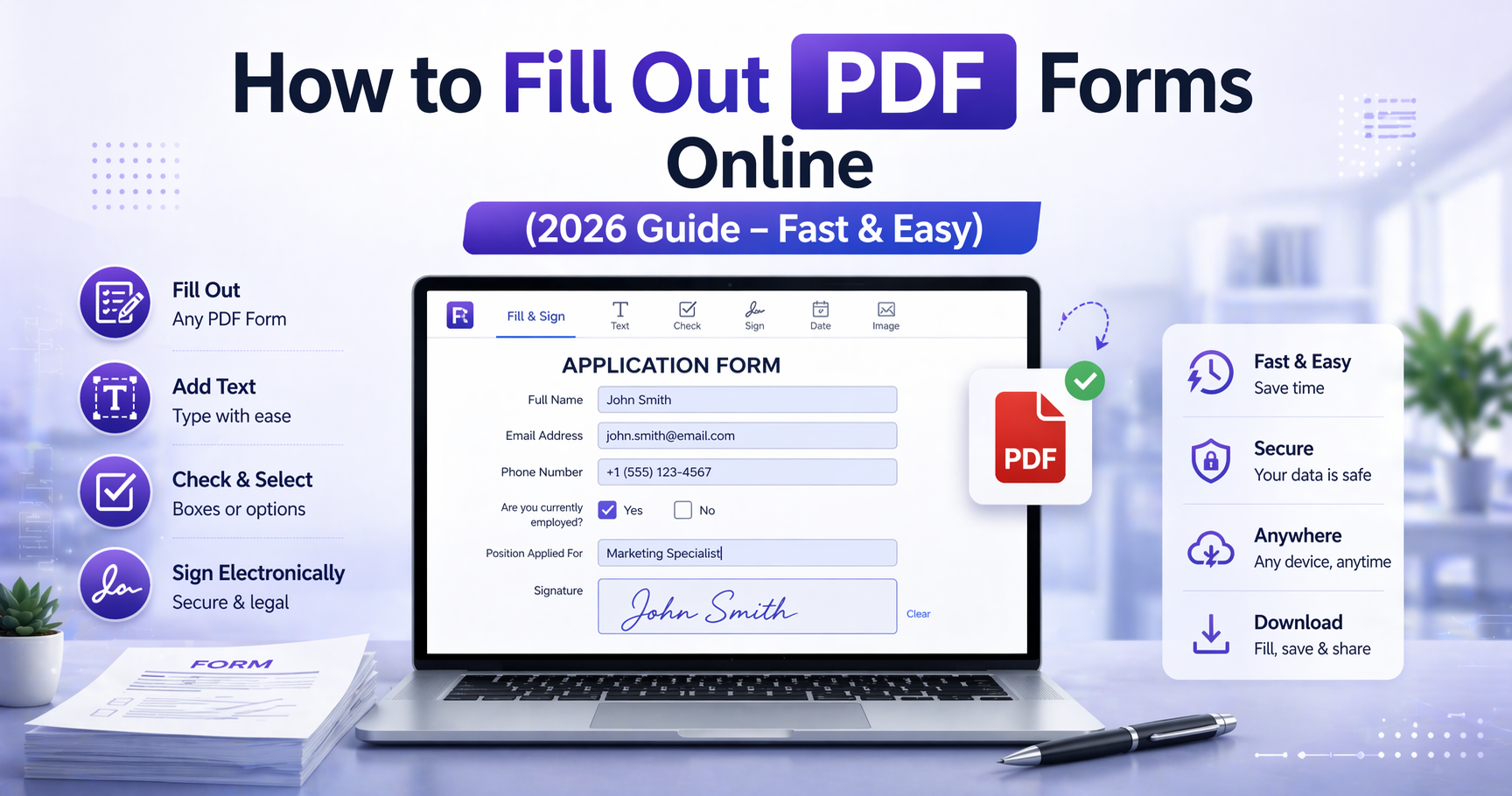
How to Fill Out PDF Forms Online (2026 Guide – Fast & Easy)
Filling out PDF forms is one of the most common document tasks today. Whether you're completing contracts, applications, invoices, or official forms, PDFs are widely used because they preserve formatting and work across all devices.
However, many users still struggle to fill out PDF forms properly. Some PDFs are editable, others are not. Some contain interactive fields, while others are just static documents.
In this complete 2026 guide, you’ll learn how to fill out any PDF form online, how to handle different types of PDFs, and how to avoid common mistakes when editing and completing documents.
What Is a Fillable PDF Form?
A fillable PDF is a document that contains interactive fields where users can enter information directly.
These fields may include:
- Text input fields
- Checkboxes
- Radio buttons
- Dropdown menus
- Date pickers
- Signature fields
These forms are commonly used in:
- Job applications
- Contracts
- Government forms
- Registration documents
- Invoices and billing forms
If your PDF already contains these fields, filling it is straightforward.
Types of PDF Forms (Very Important)
Before filling out a PDF, you need to understand what type of document you are working with.
1. Interactive (Fillable) PDFs
These PDFs have built-in fields. You can click directly into them and type.
2. Non-Fillable PDFs
These are static documents. They look like forms but do not allow direct input.
In this case, you need to add fields manually using a PDF editor.
Use:
How to Fill Out a PDF Form Online
Filling out a PDF online is the fastest and most convenient method.
- Upload your PDF file
- Click into the fields (or add fields if needed)
- Enter your information
- Save and download the completed document
Online tools allow you to complete documents without installing software.
Adding Text to Non-Fillable PDFs
If your PDF does not contain fields, you can still fill it out by adding text manually.
This is common for:
- Scanned documents
- Old forms
- Downloaded templates
Steps:
- Open the PDF editor
- Add text fields where needed
- Adjust size and position
- Fill in your information
This effectively converts a static document into a fillable one.
How to Add Checkboxes and Other Fields
More advanced forms require additional field types.
You may need:
- Checkboxes for selections
- Radio buttons for options
- Date fields for forms
- Dropdowns for structured input
Using a proper editor ensures consistency and usability.
Signing a Filled PDF
Many forms require a signature after completion.
You can sign your PDF digitally using:
This allows you to:
- Draw your signature
- Upload an image
- Type and stylize your name
Combining fill + sign is one of the most common workflows.
Common Problems When Filling PDF Forms
Users often encounter issues such as:
- Unable to type in the document
- Text not aligning correctly
- Fields not saving properly
- Fonts looking inconsistent
These problems usually come from using the wrong tool or misunderstanding the PDF type.
Best Practices for Filling PDF Forms
- Check if the PDF is fillable first
- Use structured tools instead of manual editing
- Keep formatting consistent
- Review before saving
When to Convert PDF to Word Instead
In some cases, editing directly in PDF is not ideal.
If you need full editing flexibility, you can convert the file:
This allows deeper modifications before exporting again.
Filling Out Scanned PDF Forms (OCR Explained)
One of the most common challenges when working with PDF forms is dealing with scanned documents. Unlike digital PDFs, scanned files are essentially images, which means they do not contain editable text fields.
This is why you cannot click and type into many PDF forms — the document is not actually interactive.
To work with these files, you need to simulate form filling by adding fields manually or using OCR-based tools.
Before adding fields, it is important to ensure the document is properly oriented. If pages are sideways or upside down, fix that first:
Correct orientation improves readability and accuracy when filling forms.
How to Fill Scanned Forms Step-by-Step
When dealing with scanned PDFs, the workflow changes slightly:
- Upload the scanned PDF
- Add text fields manually
- Align fields with the form layout
- Enter your data
- Save the completed document
This effectively recreates a fillable version of the document without needing the original editable file.
For advanced editing, use:
How to Keep Formatting Clean and Professional
One of the biggest mistakes users make is filling forms without considering alignment and consistency. Poorly aligned text, mismatched fonts, or inconsistent spacing can make documents look unprofessional.
To keep your forms clean:
- Align text fields carefully with the original layout
- Use consistent font size across all entries
- Avoid overlapping text
- Keep margins visually balanced
These small adjustments make a significant difference, especially in business or legal documents.
Mobile vs Desktop Form Filling
Modern workflows require flexibility. Many users now fill PDF forms on mobile devices, but the experience can differ from desktop editing.
Mobile Advantages
- Quick access anywhere
- Easy touch-based input
- Convenient for signatures
Mobile Limitations
- Less precise field positioning
- Smaller screen for complex forms
- Harder to manage large documents
For simple forms, mobile works perfectly. For complex documents, desktop is usually better.
Combining Fill + Sign Workflows
In most real-world scenarios, filling a PDF is only part of the process. The next step is often signing the document.
Typical workflow:
- Fill out the form
- Review all fields
- Add signature
- Download and send
You can sign directly after filling:
This avoids multiple tools and simplifies the process.
Handling Large or Complex Forms
Some PDF forms are much more complex than simple text documents. These may include:
- Multi-page applications
- Government forms
- Legal agreements
- Financial documents
These documents require more careful handling.
Best practices include:
- Work section by section
- Save progress frequently
- Review each page before finalizing
If the file is too large, you can optimize it:
Common Errors When Filling PDF Forms
Even though filling forms seems simple, many users make mistakes that cause issues later.
Typing Outside Field Boundaries
This creates messy documents and can hide important information.
Using Inconsistent Formatting
Different fonts or sizes reduce readability.
Forgetting Required Fields
Incomplete forms may be rejected.
Not Saving Properly
Some tools require manual saving to preserve data.
Double-checking your document before sending is always recommended.
When to Use Word Instead of PDF Forms
Sometimes PDF is not the best format for editing.
If you need to:
- Change structure
- Rewrite sections
- Modify layout significantly
It may be better to convert the document:
This gives you full control over content before exporting again.
Real-World Use Cases
Filling PDF forms is used across many industries:
- Business: contracts, invoices, onboarding forms
- Education: applications, assignments
- Legal: agreements, declarations
- Personal: registrations, official paperwork
Because PDFs are universal, they remain the standard for structured documents.
Why Online Tools Are the Best Option
Online PDF tools have become the preferred solution for filling forms because they offer:
- No installation required
- Cross-device compatibility
- Fast processing
- Secure handling
This makes them ideal for modern workflows.
Final Thoughts
Filling PDF forms online is one of the simplest ways to handle documents efficiently. Whether you're working with interactive forms or scanned files, the right tools allow you to complete, edit, and sign documents without hassle.
By understanding the type of PDF you're working with and following best practices, you can avoid common mistakes and produce clean, professional documents every time.
Start filling your PDF now: Fill PDF Forms